9 Tips and Tricks for Making the Most of Liquid Personalization
Published on November 12, 2021/Last edited on November 12, 2021/6 min read

Tommy Thoman
Training and Development Specialist, BrazePersonalized messaging campaigns can boost customer engagement across opens, clicks, and conversions. In fact, Braze research indicates that personalization can help brands boost open rates by as much as 225%.
One tool often used by savvy brands to tailor and enhance their customer messaging is Liquid personalization. Liquid, “an open-source, customer-facing template language created by Shopify and written in Ruby”, makes it possible for marketers to easily create and send individually customized emails, push notifications, and more by embedding key customer information seamlessly within their campaigns. You've probably seen Liquid in action when you've received notifications about your recent account activity, emails that include your subscriber or loyalty program member status and balance, or campaigns that summarize your recent transactions.
With Liquid, the possibilities are truly endless. If you're looking for ideas on how to get started or are ready to take your Liquid efforts to the next level, take a look at my favorite tips and tricks for using Liquid like a pro; these best practices were first shared as part of my Braze Bonfire Masterclass all about this open-source templating language.
#1: Automatically Include the Send Date in Your Campaigns
Use the Liquid variable 'now' in conjunction with the date filters ‘%A, %B %d’ wherever you'd like the message’s send date to show up. By adding the code: {{ ‘now’ | date: ‘%A, %B %d’ }}, the send date will appear (for example: Friday, October 15) and will be personalized to the specific send time of each individual recipient, on a per-user basis.
(One thing to keep in mind: If the user who’s set to receive this message doesn’t have their local data/time information available, Braze will substitute your company’s dashboard time instead.)
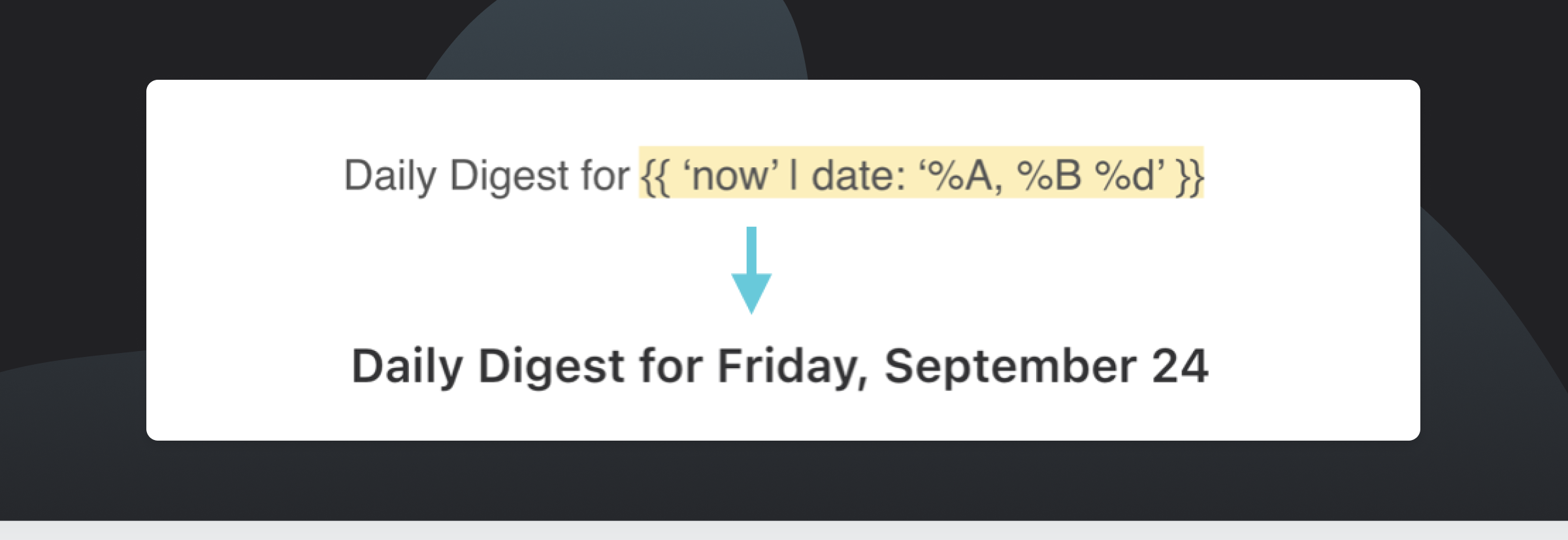
Looking to change the format of the date in question? Here's a handy resource that shows all of the date filters available.
#2: Send Personalized Messages Based on the Day of the Week
You can use the variable 'now,' to personalize messages based on days of the week, supporting personalized touches that can enhance medication or account balance reminders, purchase notifications, and much more.
Simply add these to your messaging campaigns to keep them feeling fresh and relevant to the day of the week your campaigns are sent:
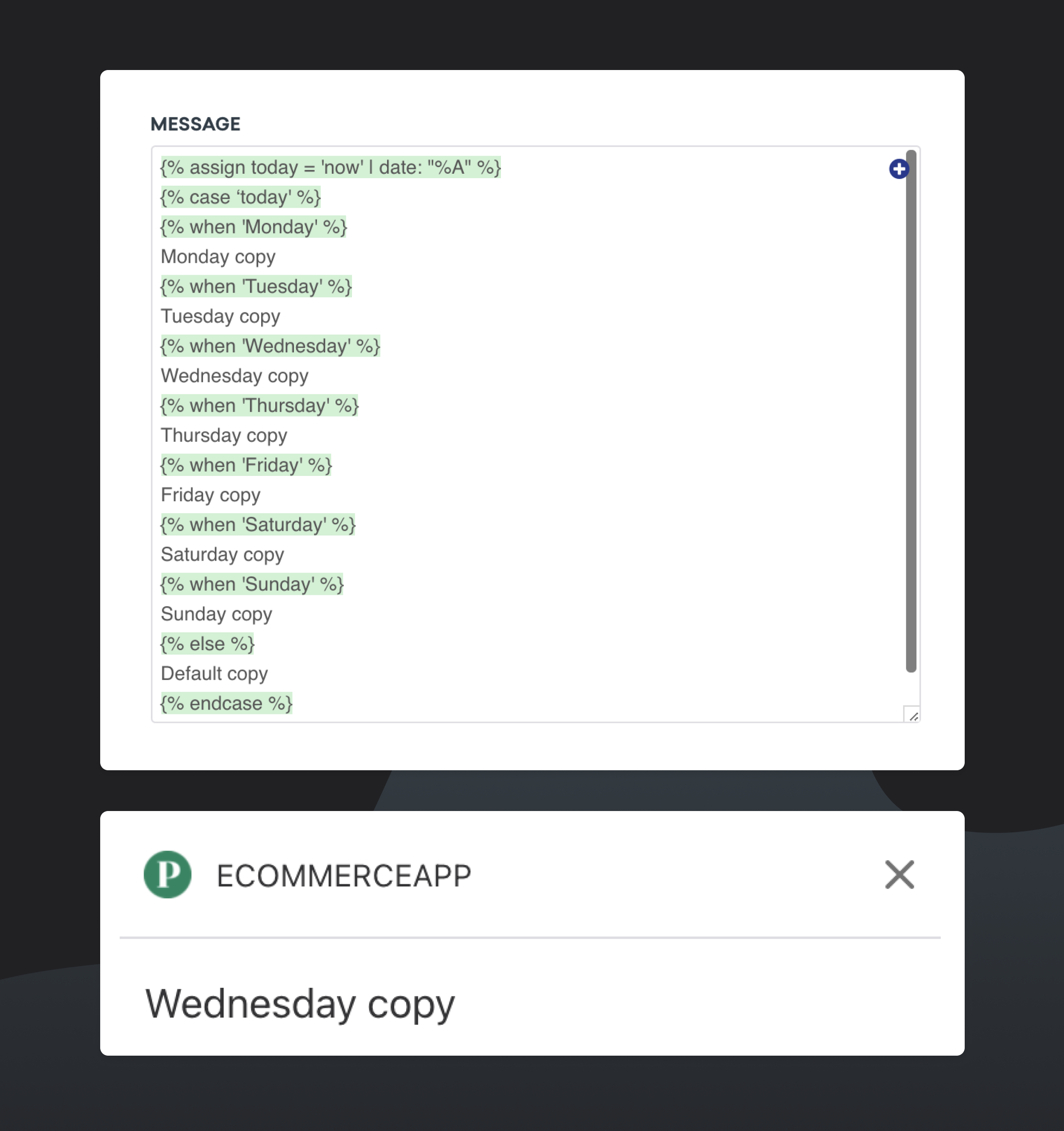
Note: You can also replace the line “default copy” with {% abort_message() %} to prevent the message from being sent if the day of the week is unknown.
#3: Customize the Display Date Based on the Recipient's Preferred Language
If language-based personalization is critical to your brand's customer engagement strategy, you can take tip #1 a step further by customizing the language that the date is displayed in. For instance, if you want to display the date in Swedish, you could include the following Liquid code:
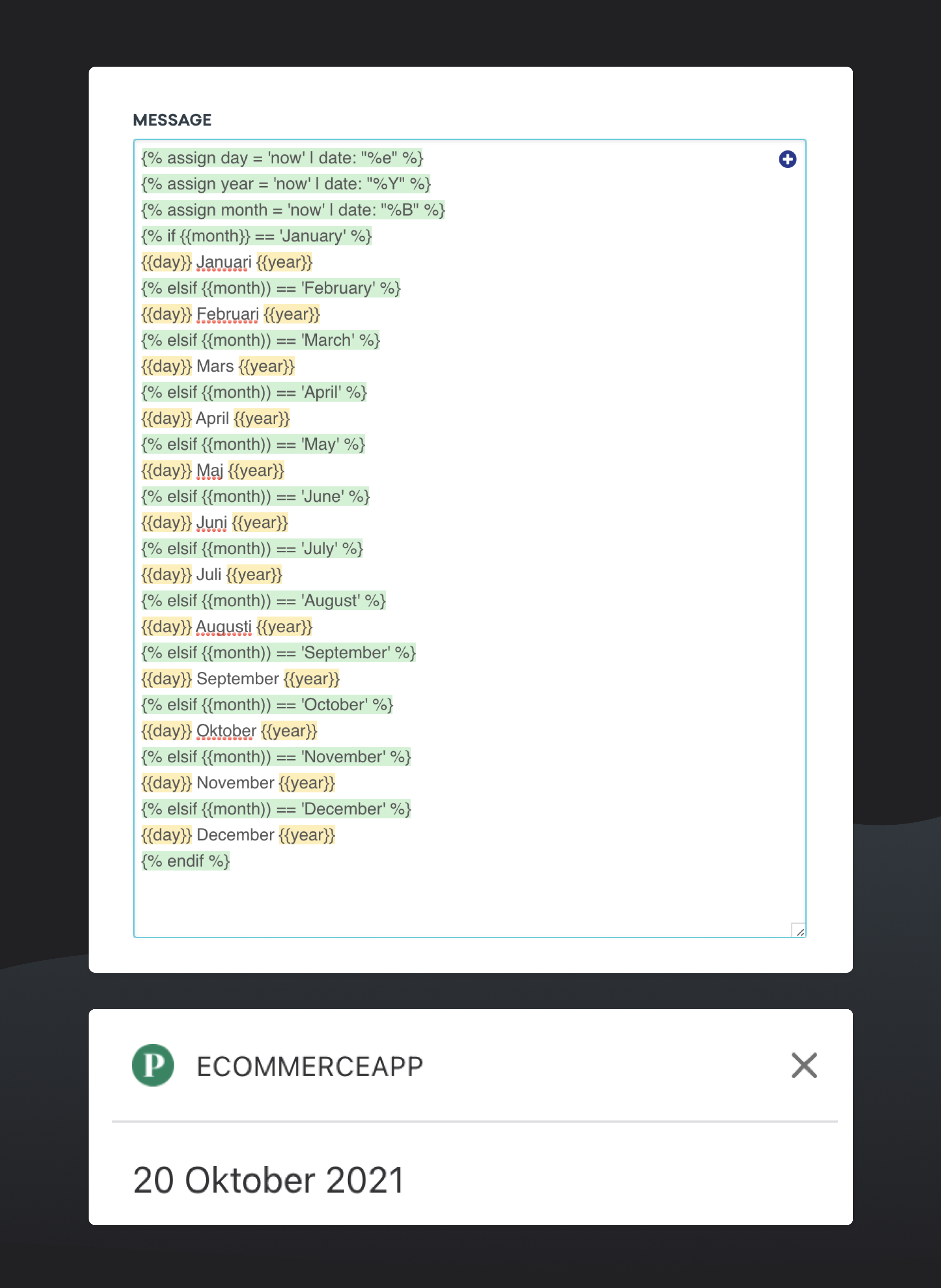
Note: This can be updated to any language of your choosing. You can also add another layer of conditional logic around this logic to create conditions for deploying a given campaign in multiple languages as well. Be sure to test your campaigns and ensure everything appears as intended before launching.
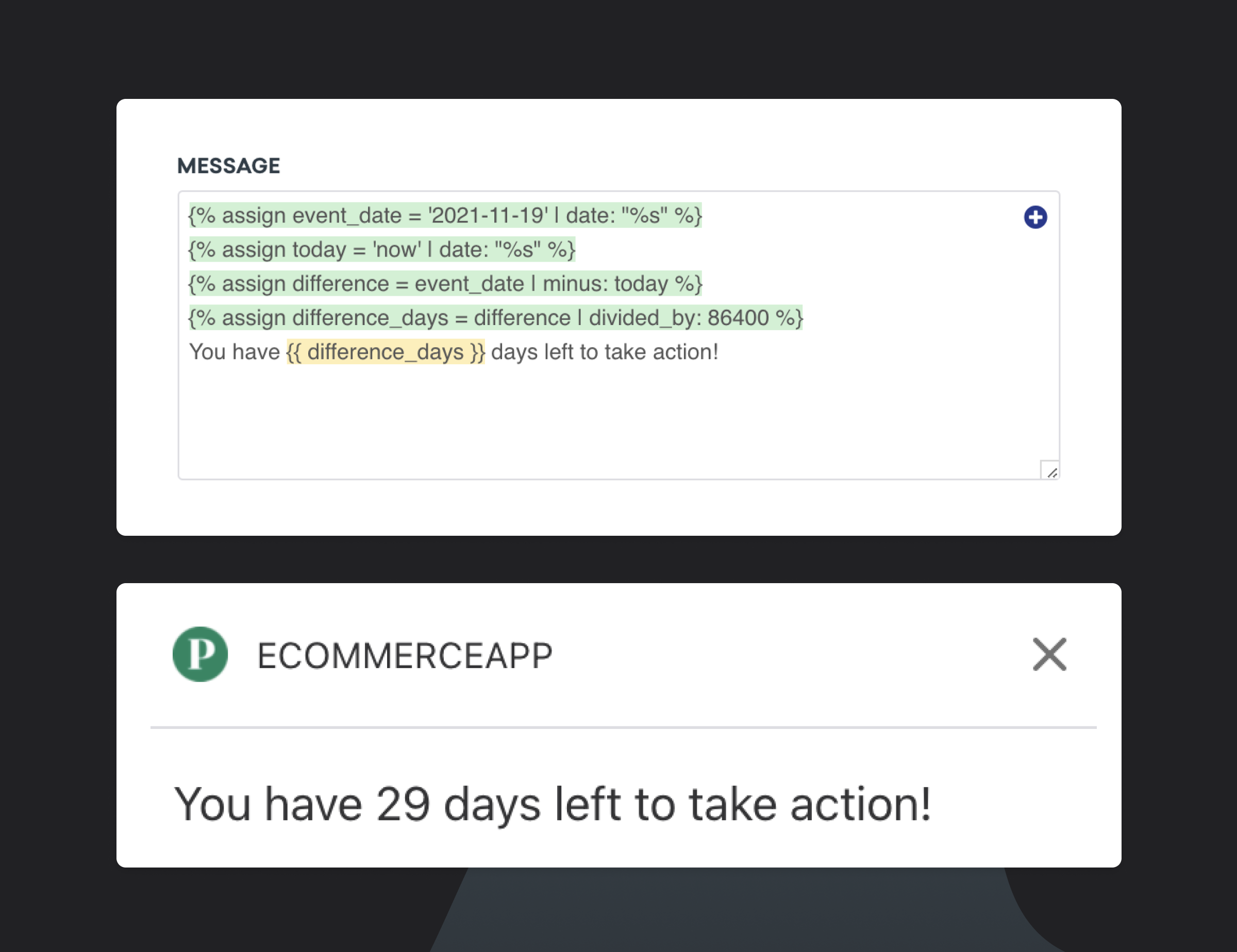
#4: Create a Countdown Campaign (in Days)
Want to generate interest in and build excitement around an upcoming event, sale, or announcement? You can use Liquid to include messaging that counts down to the big day.
Tip: Use “%s” to get the number of seconds since January 1, 1970 12AM GMT. This will allow you to compare two dates with a common set start date in integer form. Since date/time data is not an integer value by default, it cannot be used with math filters.
Here's an example of using "%s" in action:
#5: Create a Countdown Campaign (Hours/Minutes)
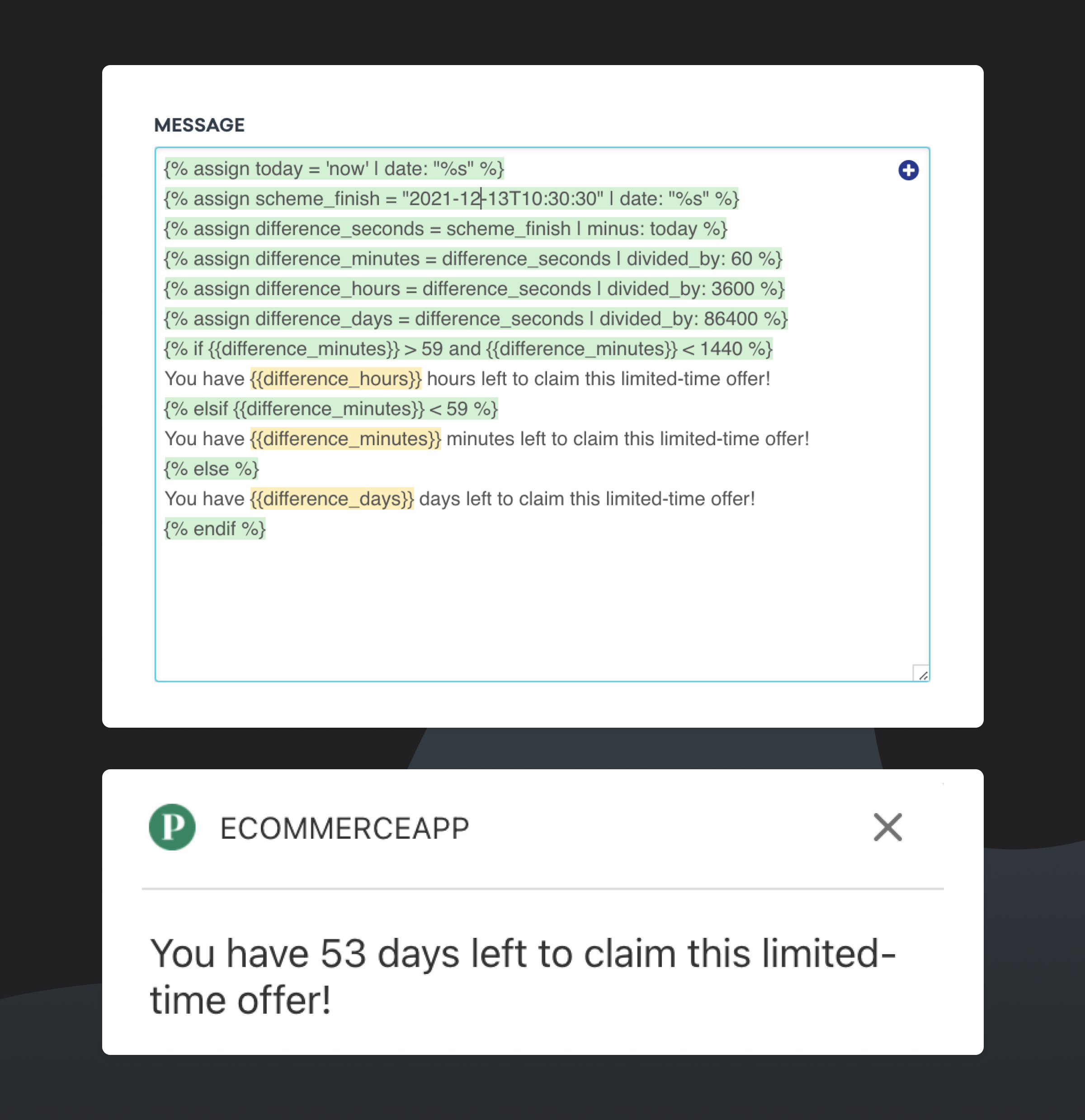
Now that you know how to create a countdown that looks ahead to the days remaining until a milestone moment, it’s possible to use Liquid to take things a step further and count down by the hours and minutes as well.
See an example of what this looks like in practice:
#6: Personalize Your Campaign Based on Recent Activity
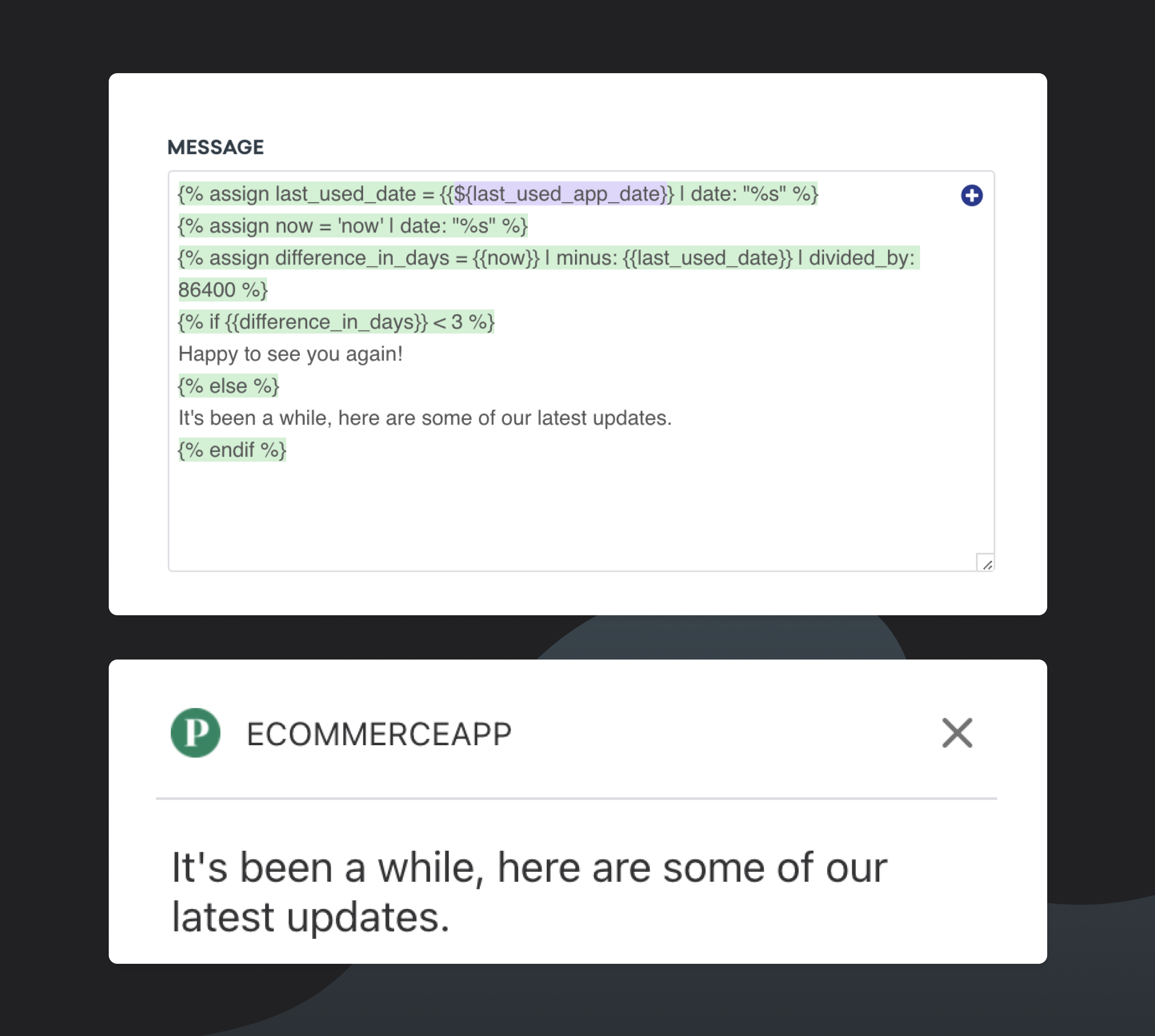
Looking to provide response experiences to your customers? You can use Liquid to create campaign variants that are personalized based on a given individual's recent app activity.
For example, you might send a user who recently opened your brand's app a message that says, “Happy to see you again!”, while you might send a user who hasn’t opened the app in a while a message that says, “It’s been a while, here are some of our latest updates.”
Here's some code you can use or modify to include your own personalized variants in your next campaign.
#7: Dynamically Add Content
Using the Liquid logic “maxValue,” you can automatically showcase items that are the highest value from a list of values, such as the high scores within your gaming app or the highest bids on an item for sale in your company's bidding marketplace.
In this example below, we use a forloop to add each integer value to our “maxValue” starting at 0. Each time the forloop repeats, the Liquid checks if the next value is greater than the last, and if it is, the logic replaces “maxValue” with the new highest value. Now, we can ultimately use the final product of “maxValue” to display the largest amount stored in that array.
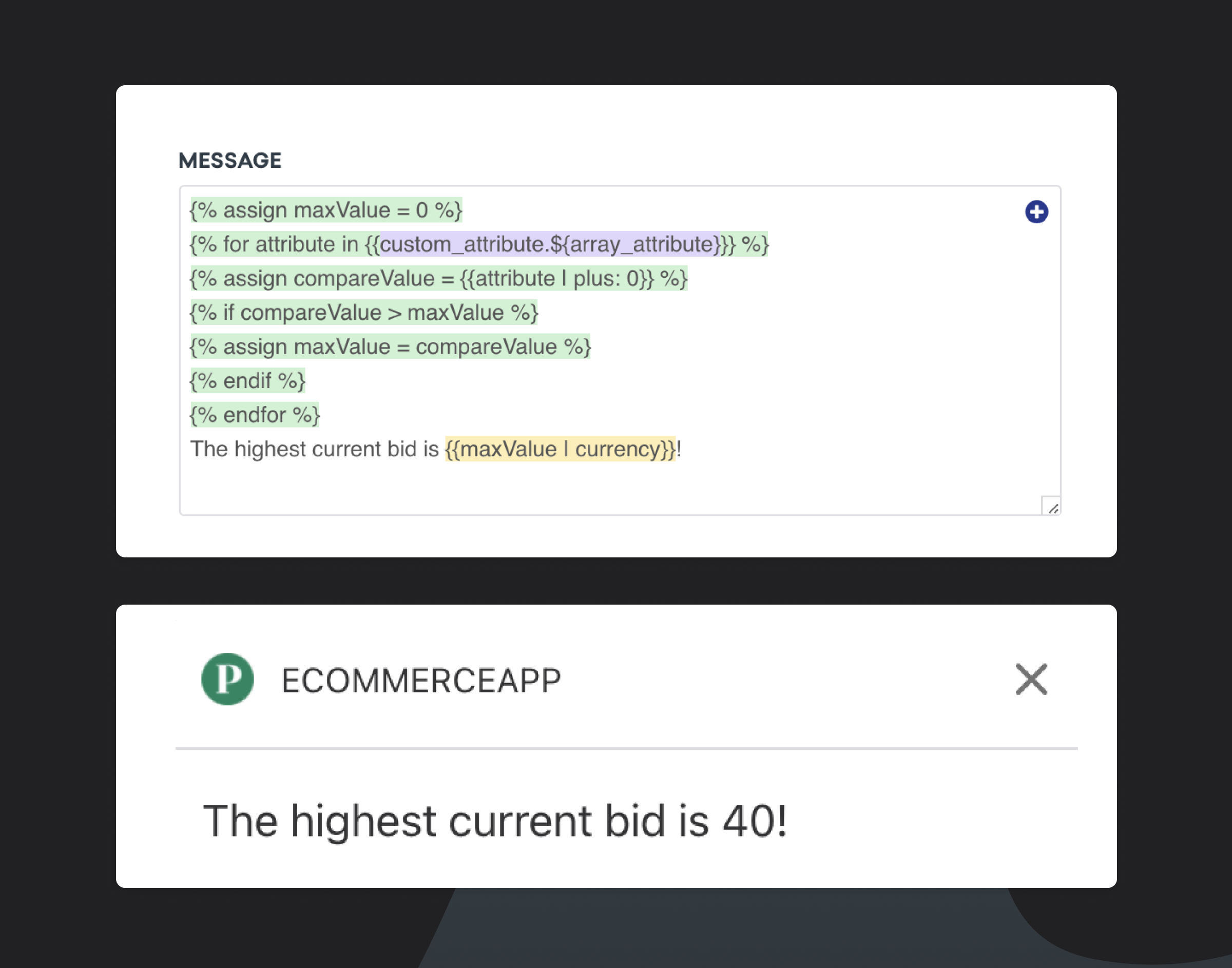
Note: For this to work properly, you must use a custom attribute that has an integer value and is part of an array (list).
#8: Add Ordinal Numbers for Dates
Want to format your dates using ordinal numbers (1st, 2nd, 3rd, etc.)? You can do so using "if" logic statements as follows:
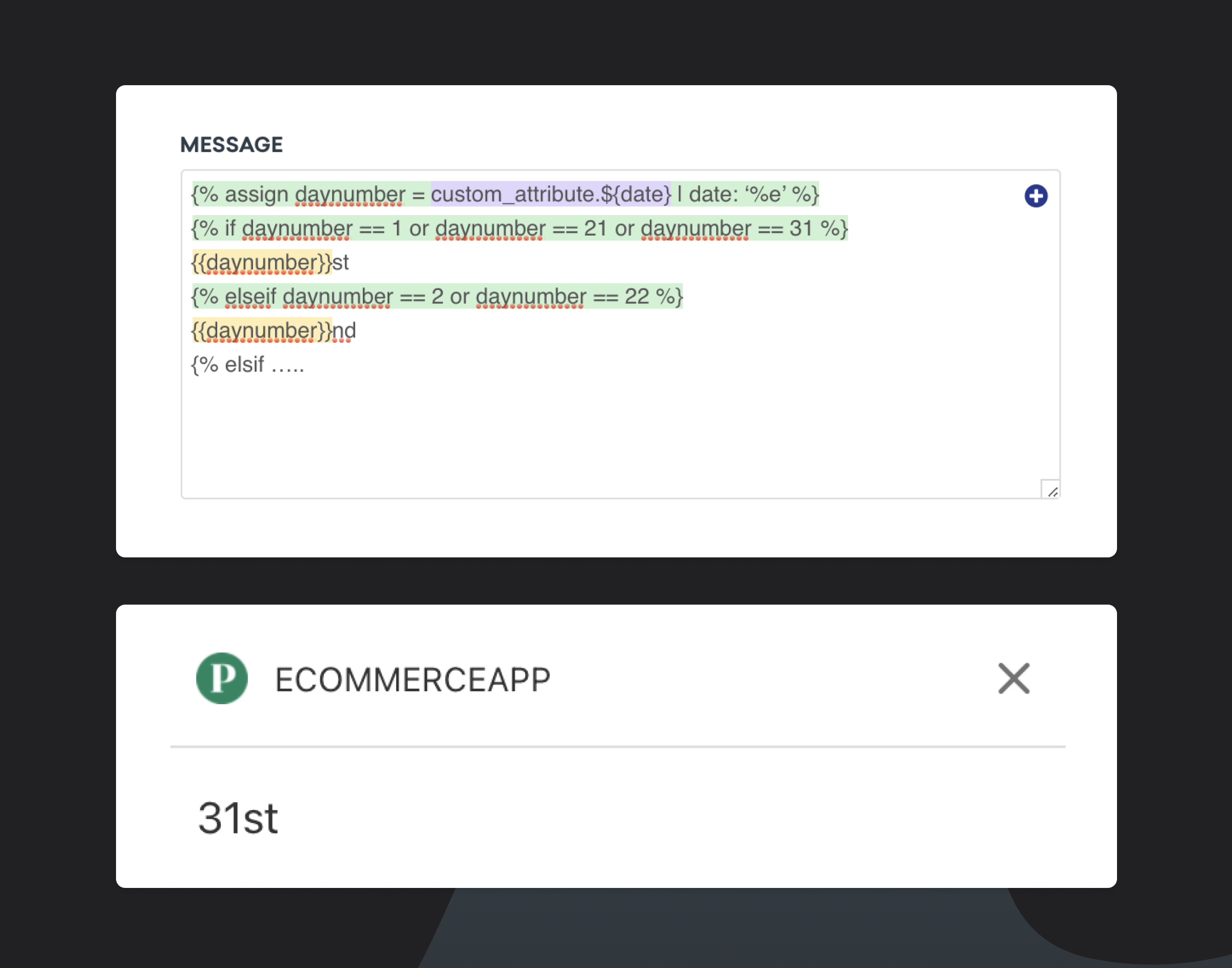
Note: If you repeat this to account for up to 31 days in a month, then this Liquid can be reused as needed.
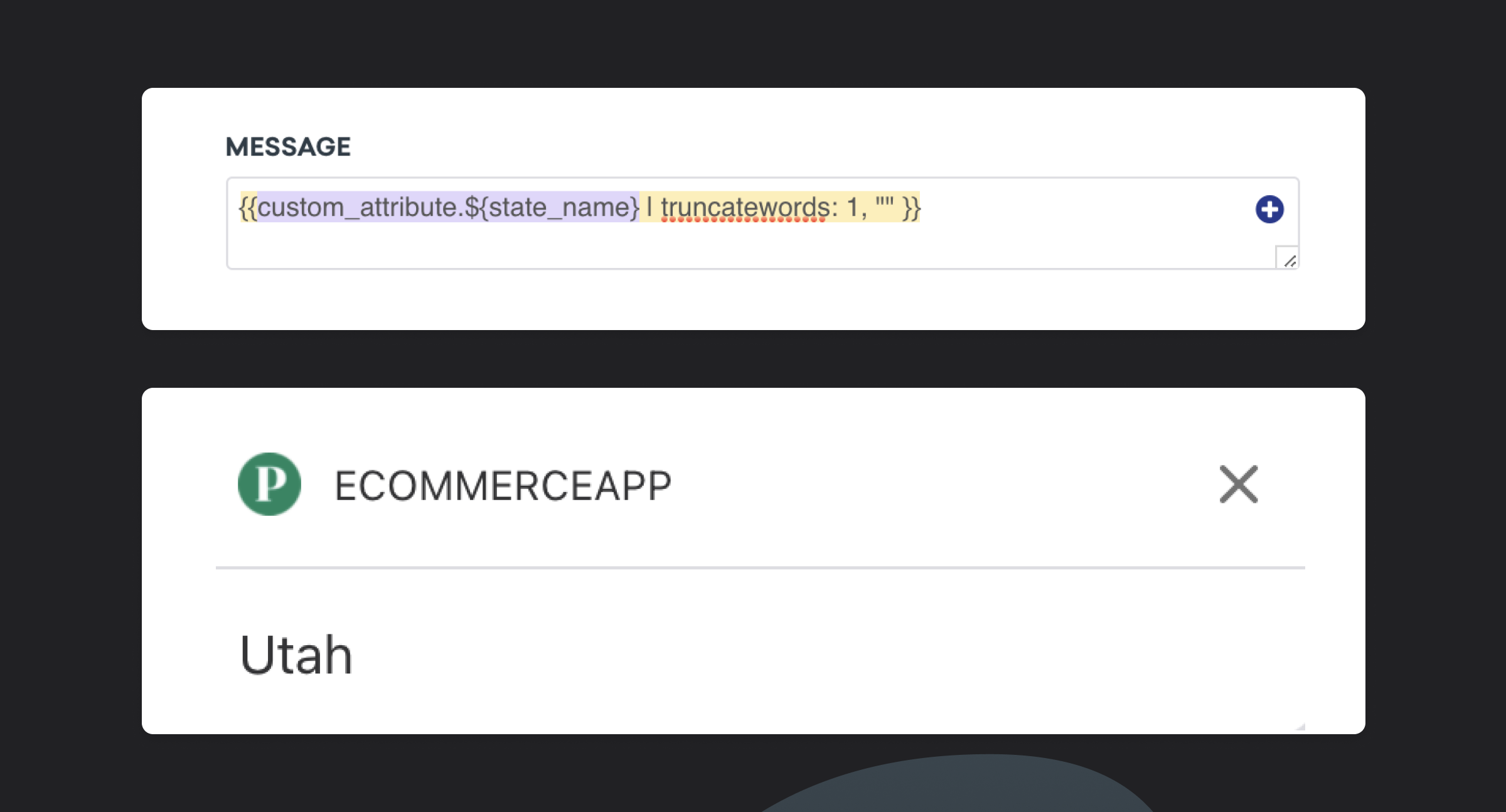
#9: Use this Trick to Display Only a Certain Number of Words or Characters
If you're limited on space, you can use the filter “truncatewords” to only display a certain number
of words, or the filter “truncate” to only display a certain number of characters.
Here’s an example of what that looks like in practice:
Note: 31536000 is how many seconds there are in a year. We use “floor” to always round down, because if it hasn't been a full year, that user hasn’t reached their birthday yet.
Join Our Community of Customer Engagement Professionals on Braze Bonfire
Our virtual Braze Bonfire Slack community is made up of thousands of Braze users—marketers, growth team members, product folks, and more—located all over the globe. Become a member today to connect with our community of customer engagement professionals ready to answer questions, share best practices, and become a part of your network. Plus, you'll be the first to find out about future Masterclass sessions led by our experts here at Braze.
Related Tags
Be Absolutely Engaging.™
Sign up for regular updates from Braze.
Related Content
 Article16 min read
Congratulations to the Forge 2026 Torchie Awards winners
September 29, 2026 Article6 min read
Bring 1:1 decisioning to every marketing journey with BrazeAI Decisioning Studio™ Go
September 28, 2026 Article12 min read
Made for this: How Braze is providing new ways to build, support, and extend your campaigns
September 28, 2026